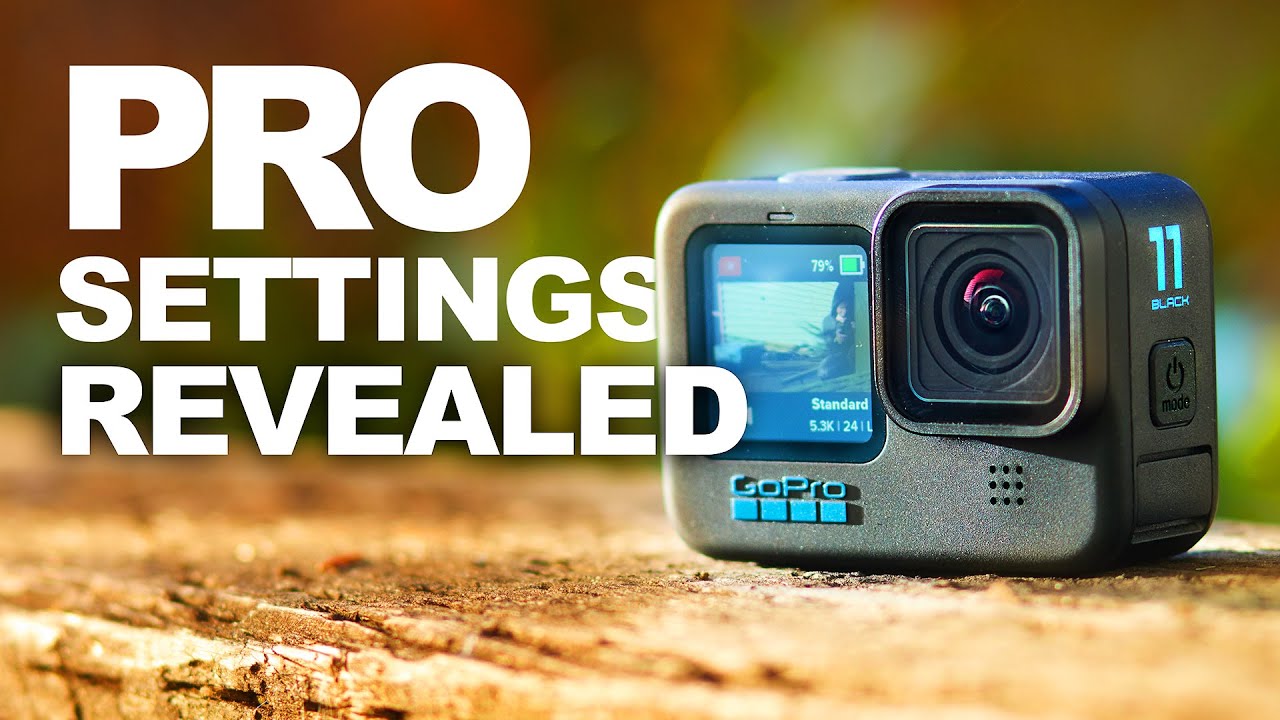
The GoPro Hero 11 Black was released in September 2022 and remains a capable value option for motorcycle riders now that newer GoPro models have replaced it. It is an older model, so check current availability and pricing and compare it with GoPro’s current lineup. This guide covers the real specifications, the best settings for motorcycle use, and an honest assessment of where it stands against the Hero 13 and DJI competition.
GoPro Hero 11 Black: Key Specifications
| Spec | Hero 11 Black |
|---|---|
| Sensor | 1/1.9-inch, 27MP |
| Max Video | 5.3K/60fps, 4K/120fps, 2.7K/240fps |
| Stabilization | HyperSmooth 5.0 with Horizon Lock |
| Battery Life | ~70 min at 5.3K, ~100 min at 4K/60fps |
| Waterproof | 10m without housing |
| Weight | 154g with battery |
| Storage | microSD (128GB recommended) |
| Current Price | ~$249 (down from $399 launch) |
What Changed Over the Hero 10
The Hero 11 introduced the larger 1/1.9-inch sensor — the same size used in the Hero 12 and Hero 13. This is the biggest practical upgrade: more light hits the sensor, which means better dynamic range in high-contrast riding situations (tunnel exits, tree-lined roads, sunrise/sunset rides) and cleaner low-light footage.
The other significant addition was Horizon Lock — independent of HyperSmooth, this keeps the horizon perfectly level even if the camera tilts up to 45 degrees. For motorcycle use this is genuinely useful when the camera shifts slightly in a mount over long rides.
Best GoPro Hero 11 Settings for Motorcycle Riders
Daily Road Riding (motorway + A-roads)
- Resolution: 4K / 60fps
- Lens: Linear (removes fisheye distortion — license plates and road signs stay readable)
- Stabilization: HyperSmooth Boost
- Horizon Lock: On
- ISO Max: 1600 (daytime) / 6400 (if riding at night)
- Shutter: Auto (or manual at 1/120s for 60fps — double the frame rate)
- White Balance: Auto
- Color: Natural (if not colour grading) or Flat (if you edit)
Track Days / Fast Road Riding
- Resolution: 4K / 120fps (for slow-motion replay of cornering technique)
- Lens: Wide or Linear
- Stabilization: HyperSmooth Standard (Boost crops in too much at 4K/120fps)
- Shutter: 1/240s when shooting 120fps
Adventure / Off-Road Riding
- Resolution: 2.7K / 60fps (saves storage, easier to edit)
- Lens: Wide or SuperView (shows more of the trail)
- Stabilization: HyperSmooth Boost
- Horizon Lock: On
Mounting Options for the Hero 11
The Hero 11 uses GoPro’s standard mounting ecosystem, which means it’s compatible with the widest range of third-party mounts on the market.
Recommended chin mount: GoPro Helmet Chin Mount ($49.99) — specifically designed for the Hero 11’s form factor with a quick-release mechanism. Compatible with full-face helmets from Shoei, Arai, Bell, AGV, and Shark.
Side mount alternative: RAM Mounts B-size ball with GoPro adapter — more secure than adhesive at sustained highway speeds.
Top mount: GoPro’s Vented Helmet Strap is the standard solution — adjustable and works with open-face and modular helmets where a chin mount isn’t possible.
Hero 11 vs. Hero 13 Black: Is the Upgrade Worth It?
If you already own a Hero 11, upgrading to the Hero 13 Black gives you:
- HyperSmooth 6.0 (noticeably better at high-frequency vibration from engines)
- Faster processor (shorter startup time)
- Better battery life (30% improvement)
- Modular lens system (swap between wide, macro, and anamorphic)
At the current price gap (~$150), the Hero 13 upgrade is worth it if you do significant highway riding where engine vibration management matters. For occasional use, the Hero 11 at $249 remains excellent value.
Hero 11 vs. DJI Osmo Action 4
The DJI Osmo Action 4 (also ~$249) is the direct competitor. The key differences for riders:
- Battery life: DJI wins significantly — 160 min vs. 100 min at comparable settings
- Dual screen: DJI’s front-facing screen makes solo vlogging easier
- Stabilization: Roughly equal in real-world riding tests
- Ecosystem: GoPro has more accessories and wider mount compatibility
- Low light: DJI’s 1/1.3-inch sensor is slightly larger — marginal advantage in dark conditions
Both are excellent choices at this price point. If battery life is your priority, choose DJI. If mount compatibility and ecosystem matter more, choose GoPro.
Frequently Asked Questions
What microSD card should I use with the Hero 11?
For 5.3K recording, you need a V30-rated card minimum. Recommended: SanDisk Extreme Pro 128GB (V30, ~$22) or Samsung PRO Endurance 128GB (better for continuous recording). Avoid unbranded or Class 10-only cards — they cause dropped frames at high bitrates.
Can the Hero 11 charge while recording?
Yes — via USB-C. You can run a power bank or motorcycle USB port through the side door (which means the camera is no longer waterproof while charging). GoPro’s Protective Housing allows charging while maintaining water resistance.
What is the best mount position for reducing wind noise?
Chin mount reduces wind noise significantly versus top mount because the camera is more sheltered by the chin bar. A foam windscreen (GoPro Media Mod or third-party) over the microphone reduces noise further. See our Settings Optimizer tool for custom audio recommendations.
Ready to see if the Hero 11 is right for your riding style? Try our free Camera Recommender — it takes 60 seconds and gives you a personalised pick based on your helmet, riding type, and budget.
Official resources: GoPro Hero 11 Black official page | Hero 11 firmware updates.