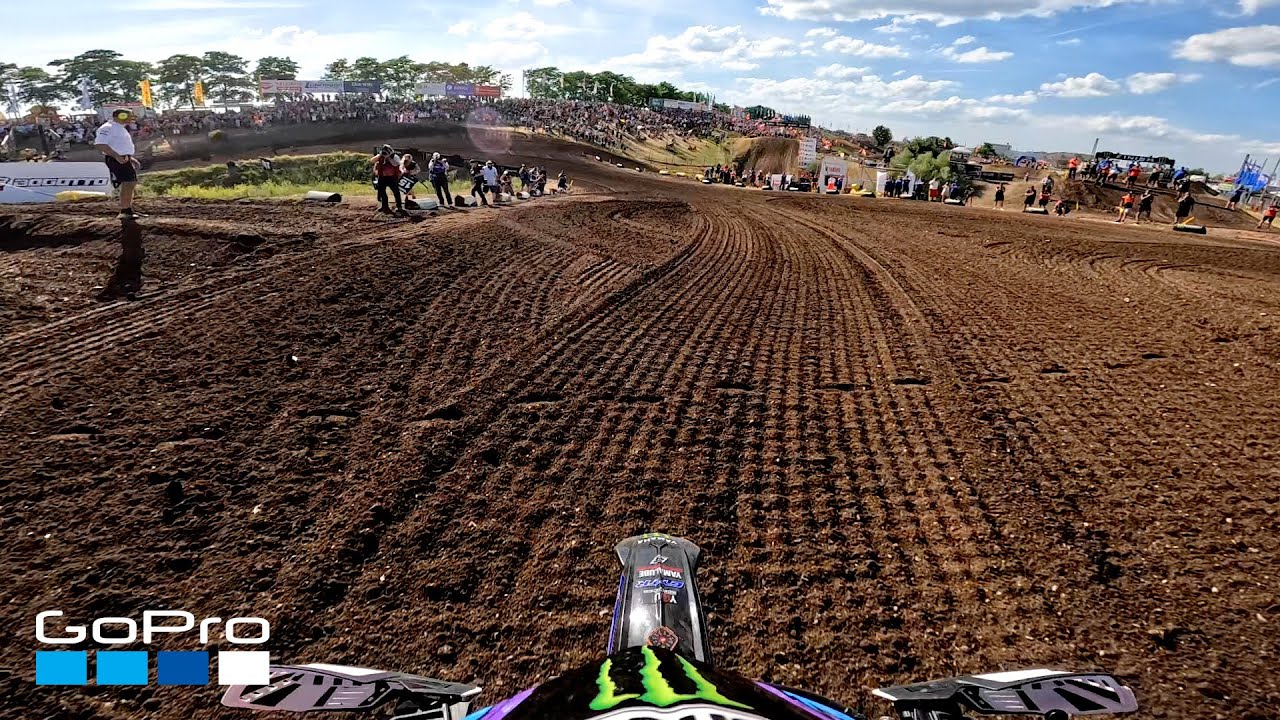
The difference between amateur and professional motorcycle racing footage often comes down to camera settings, not camera brand. Racers and instructors use on-bike and helmet cameras to analyse cornering technique, racing lines, and braking points — and the right settings make the difference between footage you can learn from and footage that’s just noise. This guide covers optimal camera settings for motorcycle racing, track days, and performance riding.
What Racing Footage Is Actually Used For
Understanding your goal determines your settings. Racing camera footage serves three distinct purposes:
- Technique analysis: Reviewing your own cornering, braking points, and body position to identify areas for improvement.
- Content creation: YouTube/social media footage from track days and race weekends.
- Safety/incident documentation: Evidence in the event of an on-track incident.
The optimal settings differ for each purpose. Most riders prioritise analysis and content — and the settings below cover both.
Best Settings for Track Day / Racing Footage
GoPro Hero 13 Black — Recommended Track Settings
| Setting | Value | Reason |
|---|---|---|
| Resolution | 4K / 120fps | Slow-motion capability at full resolution |
| Lens | Linear (no distortion) | Accurate representation of lines and distances |
| Stabilization | HyperSmooth Standard | Boost crops too much at 4K/120fps |
| Horizon Lock | ON | Keeps frame level through high-lean corners |
| Shutter | 1/240s | Double the frame rate |
| ISO Max | 1600 | Clean image in daylight |
| White Balance | Auto | Track lighting changes; auto handles it |
| Color | Flat (Log) | Preserves dynamic range for editing |
| GPS | ON | Records speed/GPS data overlay |
DJI Osmo Action 5 Pro — Recommended Track Settings
| Setting | Value | Reason |
|---|---|---|
| Resolution | 4K / 120fps | Slow motion at HD quality |
| FOV | Normal or Wide | Normal for technique analysis; Wide for content |
| RockSteady | Standard ON | 4K/120fps limits Boost mode |
| Horizon Steady | ON | Critical for corner footage |
| Color | D-Cinelike | Flat profile for post-production |
| Shutter | 1/240s | Double frame rate |
Why Frame Rate Matters for Racing Analysis
At 60fps, a corner entry at 160 km/h is over in approximately 12 frames. At 120fps, you get 24 frames of the same action — twice the detail to analyse braking point, turn-in timing, and body position.
For professional race analysis, data overlay software (MOTEC, AiM, Racelogic VBOX) syncs GPS and engine data with camera footage. Even without dedicated software, GoPro’s GPS overlay in the Quik app shows speed, corner speed, and braking points as a timeline — useful for comparing laps and identifying where you’re losing time.
Camera Positioning for Maximum Technical Value
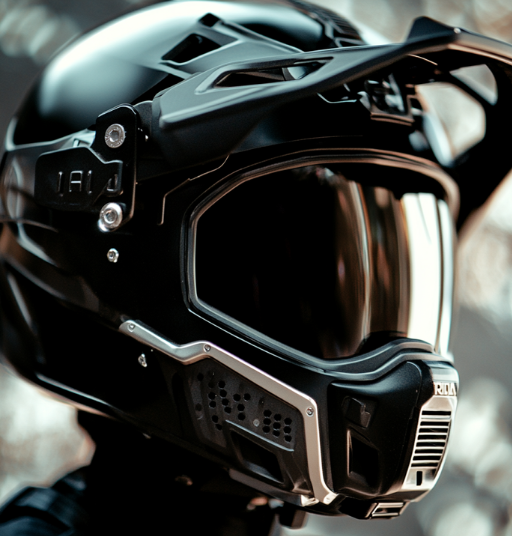
Chin Mount: Best for Technique Analysis
The chin mount gives you the rider’s perspective — you can see your own body position, bar inputs, and how the track looks from where you’re sitting. Comparing sessions with a coach or more experienced rider using the same footage format allows frame-by-frame technique comparison.
Top Mount: Best for Cornering Spectacle
The elevated angle from a top mount captures lean angle visually — you can see the bike leaning and the road rushing past. For content creation, this is more dramatic. For technique analysis, it’s less useful because you lose the rider’s eye-line perspective.
Chest Mount: Additional Option for Analysis
A chest-mounted camera (GoPro Chesty harness) shows hand positions on the handlebars and weight distribution changes through corners. Not useful for helmet-focused analysis but adds a second angle for multi-camera track day edits.
GPS and Telemetry Integration
GoPro Hero 13 records GPS data automatically. In the GoPro Quik app, you can enable a speed/altitude/map overlay on your footage without any additional hardware. This turns standard track footage into analysis-capable data.
For more detailed telemetry, the Racelogic VBOX Sport ($899) records GPS at 10Hz and synchronises with camera footage. This is serious motorsport-level analysis hardware — used by trackday instructors and amateur racers for precise lap time analysis.
Protecting Your Camera at Track Events
Track incidents happen even to experienced riders. Protective considerations:
- Use a quick-release chin mount, not permanent adhesive — the camera should detach cleanly in a crash
- Consider a UV filter over the lens ($8–15) to protect the glass from debris and scratches
- Don’t use the naked camera at track days without at least the minimal frame — the exposed lens element is vulnerable
- Register your camera’s serial number with the manufacturer — replacement programmes exist for incidents
Post-Session Review: Getting Value from Your Footage
The most effective use of track day footage is systematic review with a specific question in mind. Rather than watching the whole session, focus on:
- Specific corners where you lost time — compare your turn-in point to a faster lap of the same corner
- Braking points — in slow motion at 120fps, you can see exactly when and how hard brakes are applied
- Body position — from a chest or chin mount perspective, compare your position in fast and slow laps
- Reference markers — use the GPS overlay to compare corner speeds between sessions
Use our Settings Optimizer tool to generate exact recommended settings for your specific camera and track conditions.
Frequently Asked Questions
Can I use a helmet camera at official motorcycle race events?
Rules vary by sanctioning body and event. MSA/MSUK regulations allow helmet cameras at club events and sprint meetings. International competition (FIM, BSB) has specific regulations about camera mounting and housing. Always check the event regulations — some require specific mount types to maintain helmet certification.
What’s the best way to analyse cornering using helmet camera footage?
Set your timeline to the slowest playback your editing software allows (most allow 1/4 or 1/8 speed on 120fps footage — effective 480fps). Watch specifically for: when you first start braking (look for front dip), when you apply steering input, when you look through the corner exit, and when you open the throttle. These timing decisions determine lap times far more than outright speed.
Official resources: GoPro Hero 13 Black specifications | GoPro firmware and updates.