From Chaotic Clip to Cinematic Story: Mastering Your DJI Osmo Action 3
You crest the peak, the trail drops away, and you commit to the descent. The wind roars, your heart pounds, and the world becomes a blur of adrenaline and focus. Later, you eagerly hit play, only to be met with a jittery, distorted mess—a shaky, poorly exposed clip that fails to capture even a fraction of the feeling. That disconnect between an epic experience and a forgettable video ends today. The difference between merely documenting an event and crafting an immersive story lies in a tool built for chaos and the knowledge to wield it. Mastering the DJI Osmo Action 3 is the key to unlocking professional-grade footage from the heart of your adventures, transforming you from a passive spectator into the director of your own action film.
Laying the Foundation: Core Hardware and Setup
Your initial choices with the Osmo Action 3 determine its reliability and creative potential. This isn’t just about turning it on; it’s about engineering a fail-safe capture system.
Part A: Selection & Core Understanding
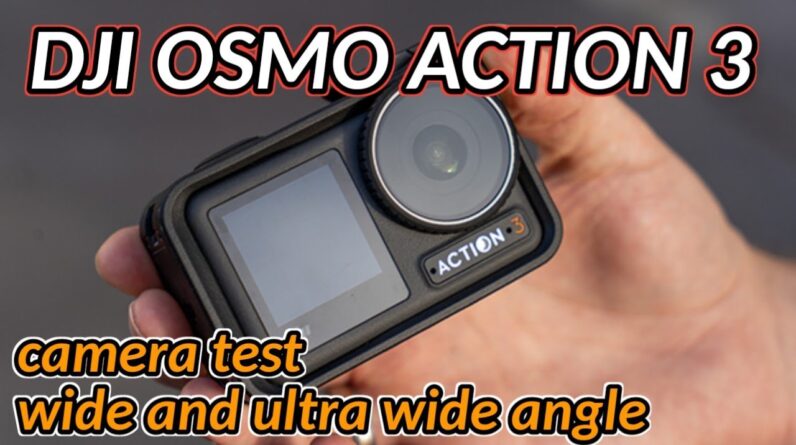
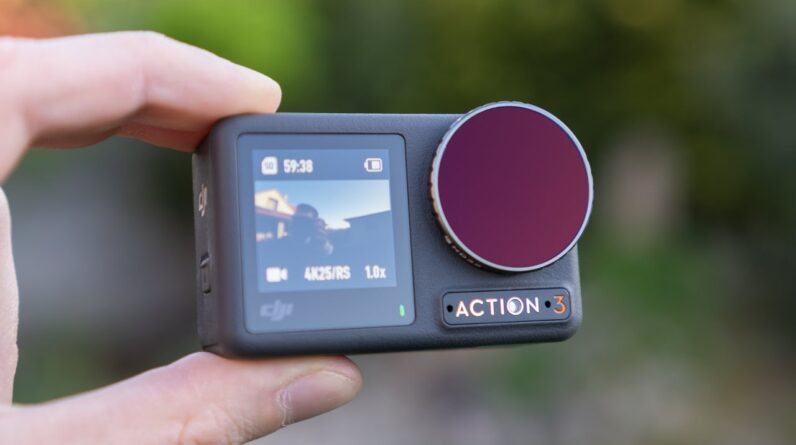
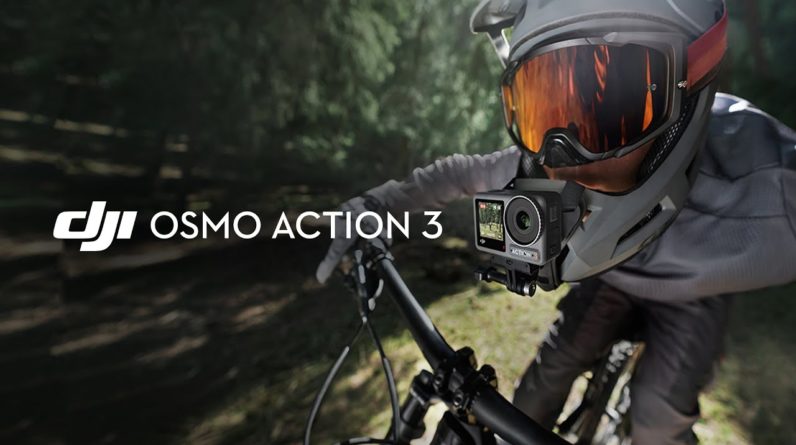
The Action 3’s compact, rugged form factor is its superpower. Unlike bulkier cameras, its magnetic quick-release system and standardized mounting base make it ideal for dynamic perspectives. Use it for a chin-mounted helmet view that mimics your exact line of sight, a handlebar mount for stable trail shots, or a chest mount for a compelling, mid-action perspective. Its front-facing screen is not a gimmick—it’s your tool for ensuring you’re perfectly framed before dropping into a run or starting a narration.
Part B: Mounting & Positioning Tactics
Position is everything. For helmet mounting, the chin position generally provides the most immersive, first-person view that matches your head movements. The top of the helmet offers a higher, more observational perspective. Whichever you choose, perform a calibration ritual: wear your full kit, look at the horizon, and use the camera’s leveling guide to ensure your shot is straight. Finally, secure all connections with a dab of loctite on the thumb screws to prevent vibration from loosening your rig mid-action.
Part C: Essential Components & Accessories
The camera body is just the start. Building your system with the right components turns a great camera into an unstoppable production kit.
| Component Category | Options | Key Characteristics |
|---|---|---|
| Batteries & Power | Standard Battery, Endurance Cycle, Power Case | The Endurance Cycle mode extends recording in moderate temps. For all-day shoots, the Power Case (which holds three batteries and charges them on the go) is indispensable. Always carry a spare, pre-warmed battery in cold weather. |
| Mounting Solutions | Magnetic Quick-Release, Adhesive Mounts, Pivot Arm, Extension Rod | The Magnetic Base is revolutionary for swift angle changes. Use the Pivot Arm to offset the camera from a helmet, providing a better field of view. Adhesive mounts are permanent; clean the surface with alcohol and apply pressure for 24 hours for a bond that won’t fail. |
| Protective Housings | Standard Lens Guard, Dive Case | The replaceable lens guard is a sacrificial shield—always use it. For water sports beyond simple splashes, the official Dive Case is mandatory for waterproofing and provides a flat port for better underwater clarity. |
| Audio Enhancements | Built-in Mic, Wireless Mic Adapter, External Mic (via Adapter) | The built-in mic is good for ambient sound. For clear voiceovers in loud environments, the DJI Wireless Mic system (using its adapter) is a game-changer, delivering broadcast-quality audio directly to your footage. |
Commanding the System: In-Camera Control & Settings
Think of the Action 3 as a dynamic film studio you control. Mastering its settings is non-negotiable for achieving that coveted cinematic look.
Resolution, Frame Rate & Stabilization
Your choice here defines the feel of your film. Use 4K at 60fps or 120fps as your primary high-quality mode. The 120fps setting allows for buttery-smooth half-speed slow motion in post-production. For extreme slow-motion detail, switch to 1080p at 240fps. Stabilization is your invisible camera operator: RockSteady is for general, aggressive smoothing, while HorizonSteady is your go-to for activities with major level changes (like mountain biking), as it keeps the horizon locked even if the camera tilts up to 360 degrees.
Dynamic Range & Color Science
This is where pro footage separates itself. For maximum flexibility in editing, shoot in 10-bit D-Log M color profile. This flat-looking profile preserves immense detail in shadows and highlights, allowing you to color grade for a rich, custom look. For footage you want to share instantly with vibrant colors, use the Standard or Vivid profile. The rule is simple: if you edit, use D-Log M; if you don’t, use Standard.
Exposure Control
Auto-exposure can flicker and hunt in changing light, ruining a shot. For consistent scenes, lock your exposure. Tap the screen on a mid-tone area of your frame, then tap the AE lock icon. To achieve natural motion blur in bright conditions—like making a waterfall look silky—you must control shutter speed. Attach a Neutral Density (ND) filter (like an ND32 for bright sun) to allow for a slower shutter speed (aim for double your frame rate) without overexposing the shot.
Advanced Practices: Filmmaking on the Move
Now we move beyond simply recording. This is about directing your action and capturing intentional sequences.
Shot Preparation Rituals
Your pre-adventure checklist is sacred. One: clean the lens guard with a microfiber cloth. Two: insert a formatted, high-speed V30 microSD card. Three: perform a test record for 30 seconds to verify audio, stabilization, and that no moisture detection warnings appear. This 60-second ritual prevents 100% of “I forgot to…” tragedies.
Audio & On-Site Narration
Great audio carries a video. When using the built-in mic, minimize wind noise by using a deadcat muffler. For crucial commentary—explaining a climb, narrating a hike—use the wireless mic. Start recording, state the location, date, and activity clearly. This audio log becomes invaluable narration for your final edit.
Strategic Shooting & HorizonLock
Don’t just film one long clip. Plan a sequence: start with a stable establishing shot (camera on a rock or tripod). Then, switch to your main POV (helmet mount). Finally, get a follow-cam shot using a pole or asking a friend. Use HorizonLock during these transitions—like moving from a tilted bike to a level run-out—to create incredibly dynamic yet stable footage that feels professionally shot.
Threat Management: Preventing Catastrophe
A proactive stance keeps your gear rolling and your footage safe.
Prevention: The Daily Discipline
After any water exposure, immediately rinse the camera with fresh water and check the battery compartment for the moisture detection sticker (white with pink dots). If dots are pink, do not charge; place the camera in a bag of silica gel. In cold weather, keep spare batteries in an inner pocket close to your body. Regularly inspect adhesive mounts for lifting edges.
Intervention: Troubleshooting Guide
Problem: Lens fogging.
Solution: Ensure the camera and lens guard are at ambient temperature before sealing them together. Use anti-fog inserts in extreme conditions.
Problem: Overheating warning.
Solution: Stop recording. This is common in hot, stationary 4K/120fps recording. Switch to a lower resolution/frame rate, remove any non-breathable case, and point the camera into the wind.
Problem: Connectivity drops with the DJI Mimo app.
Solution: Power cycle both camera and phone. Ensure you are not in a area of heavy RF interference. Use the quick-transfer feature for offloading clips without a live connection.
Your Action Plan: From Shoot to Share
A streamlined workflow turns hours of footage into a shareable story efficiently.
| Phase | Primary Tasks | What to Focus On |
|---|---|---|
| Immediate Post-Recording | Power down camera. Remove battery if wet or very cold. Back up memory card to a portable SSD if on a multi-day trip. | Data integrity. Never delete clips from the card until you have two verified copies elsewhere. |
| Offload & Organize | Use the DJI Mimo app’s QuickTransfer or a card reader. Create folders by date and activity (e.g., 2024-10-27_MTB_TrailX). Do a quick review, flagging your best clips. | Organization. Spending 10 minutes here saves hours of searching later. Label everything clearly. |
| Edit & Color Grade | Import into your editor (DaVinci Resolve is excellent and free). For D-Log M clips, apply the official DJI LUT as a starting point. Cut to the music’s rhythm. Add your clean wireless mic audio. | Story and pace. Your goal is to recreate the emotion, not show every second. Use slow motion sparingly for maximum impact. Export at 4K, H.264, for online sharing. |
The Storyteller’s Tool
The true mastery of the DJI Osmo Action 3 is revealed when the tool itself disappears. You’re no longer fumbling with settings or worrying about the shot. You’re fully immersed in the experience, trusting that the camera—secured by your meticulous mount, guided by your deliberate settings—is capturing it all with cinema-level fidelity. The journey from a secure magnetic click to a color-graded masterpiece is the journey from participant to storyteller. The profound satisfaction comes not just in the doing, but in the reliving and the sharing. You’ll watch your footage and feel the wind, the speed, the focus all over again, now framed with an artistry that makes every rewatch an unparalleled joy. Your adventures deserve nothing less.