GoPro Hero 11 Black Review: Best Settings for Motorcycle Riders

GoPro Hero 11: Essential Guide + Best Settings

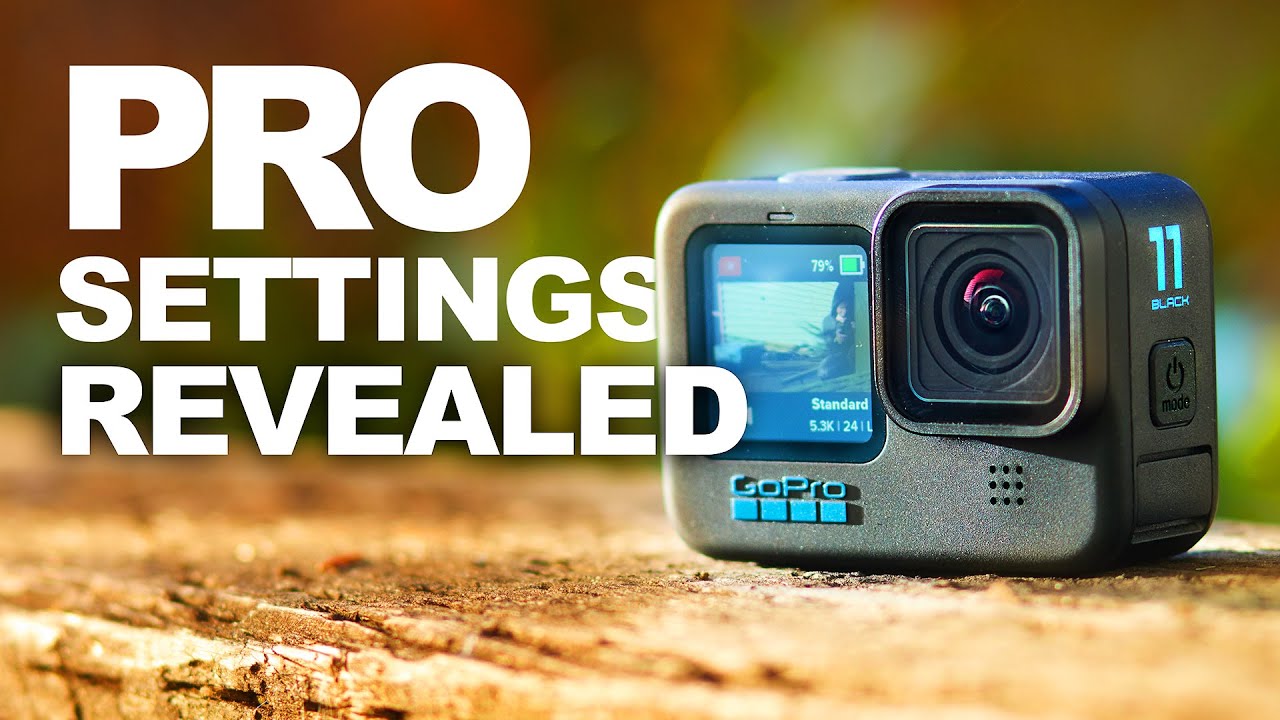
The GoPro Hero 11 Black was released in September 2022 and remains a capable value option for motorcycle riders now that newer GoPro models have replaced it. It is an older model, so check current availability and pricing and compare it with GoPro’s current lineup. This guide covers the real specifications, the best settings for motorcycle use, and an honest assessment of where it stands against the Hero 13 and DJI competition.

GoPro Hero 11 Black: Key Specifications

Spec Hero 11 Black
Sensor 1/1.9-inch, 27MP
Max Video 5.3K/60fps, 4K/120fps, 2.7K/240fps
Stabilization HyperSmooth 5.0 with Horizon Lock
Battery Life ~70 min at 5.3K, ~100 min at 4K/60fps
Waterproof 10m without housing
Weight 154g with battery
Storage microSD (128GB recommended)
Current Price ~$249 (down from $399 launch)

What Changed Over the Hero 10

The Hero 11 introduced the larger 1/1.9-inch sensor — the same size used in the Hero 12 and Hero 13. This is the biggest practical upgrade: more light hits the sensor, which means better dynamic range in high-contrast riding situations (tunnel exits, tree-lined roads, sunrise/sunset rides) and cleaner low-light footage.

The other significant addition was Horizon Lock — independent of HyperSmooth, this keeps the horizon perfectly level even if the camera tilts up to 45 degrees. For motorcycle use this is genuinely useful when the camera shifts slightly in a mount over long rides.

Best GoPro Hero 11 Settings for Motorcycle Riders

Daily Road Riding (motorway + A-roads)

  • Resolution: 4K / 60fps
  • Lens: Linear (removes fisheye distortion — license plates and road signs stay readable)
  • Stabilization: HyperSmooth Boost
  • Horizon Lock: On
  • ISO Max: 1600 (daytime) / 6400 (if riding at night)
  • Shutter: Auto (or manual at 1/120s for 60fps — double the frame rate)
  • White Balance: Auto
  • Color: Natural (if not colour grading) or Flat (if you edit)

Track Days / Fast Road Riding

  • Resolution: 4K / 120fps (for slow-motion replay of cornering technique)
  • Lens: Wide or Linear
  • Stabilization: HyperSmooth Standard (Boost crops in too much at 4K/120fps)
  • Shutter: 1/240s when shooting 120fps

Adventure / Off-Road Riding

  • Resolution: 2.7K / 60fps (saves storage, easier to edit)
  • Lens: Wide or SuperView (shows more of the trail)
  • Stabilization: HyperSmooth Boost
  • Horizon Lock: On

Mounting Options for the Hero 11

The Hero 11 uses GoPro’s standard mounting ecosystem, which means it’s compatible with the widest range of third-party mounts on the market.

Recommended chin mount: GoPro Helmet Chin Mount ($49.99) — specifically designed for the Hero 11’s form factor with a quick-release mechanism. Compatible with full-face helmets from Shoei, Arai, Bell, AGV, and Shark.

Side mount alternative: RAM Mounts B-size ball with GoPro adapter — more secure than adhesive at sustained highway speeds.

Top mount: GoPro’s Vented Helmet Strap is the standard solution — adjustable and works with open-face and modular helmets where a chin mount isn’t possible.

Hero 11 vs. Hero 13 Black: Is the Upgrade Worth It?

If you already own a Hero 11, upgrading to the Hero 13 Black gives you:

  • HyperSmooth 6.0 (noticeably better at high-frequency vibration from engines)
  • Faster processor (shorter startup time)
  • Better battery life (30% improvement)
  • Modular lens system (swap between wide, macro, and anamorphic)

At the current price gap (~$150), the Hero 13 upgrade is worth it if you do significant highway riding where engine vibration management matters. For occasional use, the Hero 11 at $249 remains excellent value.

Hero 11 vs. DJI Osmo Action 4

The DJI Osmo Action 4 (also ~$249) is the direct competitor. The key differences for riders:

  • Battery life: DJI wins significantly — 160 min vs. 100 min at comparable settings
  • Dual screen: DJI’s front-facing screen makes solo vlogging easier
  • Stabilization: Roughly equal in real-world riding tests
  • Ecosystem: GoPro has more accessories and wider mount compatibility
  • Low light: DJI’s 1/1.3-inch sensor is slightly larger — marginal advantage in dark conditions

Both are excellent choices at this price point. If battery life is your priority, choose DJI. If mount compatibility and ecosystem matter more, choose GoPro.

Frequently Asked Questions

What microSD card should I use with the Hero 11?

For 5.3K recording, you need a V30-rated card minimum. Recommended: SanDisk Extreme Pro 128GB (V30, ~$22) or Samsung PRO Endurance 128GB (better for continuous recording). Avoid unbranded or Class 10-only cards — they cause dropped frames at high bitrates.

Can the Hero 11 charge while recording?

Yes — via USB-C. You can run a power bank or motorcycle USB port through the side door (which means the camera is no longer waterproof while charging). GoPro’s Protective Housing allows charging while maintaining water resistance.

What is the best mount position for reducing wind noise?

Chin mount reduces wind noise significantly versus top mount because the camera is more sheltered by the chin bar. A foam windscreen (GoPro Media Mod or third-party) over the microphone reduces noise further. See our Settings Optimizer tool for custom audio recommendations.

Ready to see if the Hero 11 is right for your riding style? Try our free Camera Recommender — it takes 60 seconds and gives you a personalised pick based on your helmet, riding type, and budget.

Official resources: GoPro Hero 11 Black official page | Hero 11 firmware updates.

Best Slow-Motion Settings for Motorcycle Helmet Cameras (120fps & 240fps Guide)

GoPro: Top 10 Slow Motion Action

Slow motion footage from a helmet camera is one of the most effective tools for creating compelling motorcycle content — and for analysing your own riding technique. But getting it right requires specific settings that most riders don’t configure correctly. This guide covers the exact slow-motion settings for GoPro Hero 13, DJI Osmo Action 5 Pro, and Insta360 cameras, plus when to use each mode for the best results.

How Slow Motion Works: The Basics

Slow motion video is simply footage recorded at a higher frame rate than it’s played back. Standard video plays at 24 or 30fps. If you record at 120fps and play back at 30fps, the footage plays at 1/4 speed — four times slower than real time.

Record at Play back at Slow-motion factor Looks like
60fps 30fps 2x slower Subtle — smooth movement
120fps 30fps 4x slower Clear slow-motion effect
240fps 30fps 8x slower Very dramatic slow motion
240fps 24fps 10x slower Cinema slow motion

Best Slow-Motion Settings by Camera

GoPro Hero 13 Black

The Hero 13 is the most capable action camera for slow motion in its price range:

  • 4K / 120fps — Best quality slow motion. 4x slow at full HD playback. Use this for: corner sequences, jump footage, arrival/departure shots at speed.
  • 2.7K / 240fps — 8x slow motion with excellent quality. Use this for: water splashes, tyre roost, crash analysis, jump apexes in motocross.
  • 1080p / 240fps — 8x slow motion. Lower resolution but useful for long takes where storage matters.

Critical shutter speed setting: At 120fps, set shutter to 1/240s. At 240fps, set shutter to 1/480s. This follows the “180° shutter rule” — shutter speed double the frame rate — and creates natural motion blur that makes slow motion look cinematic rather than stiff.

Stabilization at high frame rates: HyperSmooth Boost is not available at 4K/120fps on the Hero 13 — use Standard mode. The difference is minimal at the speeds involved in slow-motion sequences.

DJI Osmo Action 5 Pro

  • 4K / 120fps — RockSteady 3.0 applies at this mode. Very smooth 4x slow motion suitable for cinematic sequences.
  • 2.7K / 120fps — More stable than 4K at the same frame rate due to slightly more crop tolerance.
  • 1080p / 240fps — 8x slow motion. Adequate for action sequences where full resolution isn’t needed.

Note: The Action 5 Pro does not offer 240fps at 4K. For maximum slow motion quality, use 2.7K or 1080p at 240fps, or 4K at 120fps for the best balance.

Insta360 X5

The X5 handles slow motion differently because of its 360° format:

  • 5.7K 360° / 30fps normal speed — then apply FlowState stabilization and reframe in the app.
  • 4K Single Lens / 100fps — Approximately 3x slow motion. Limited compared to GoPro/DJI for slow motion but the reframing advantage compensates.

For slow-motion motorcycle content with the X5, plan to reframe in the Insta360 Studio app: choose your angle, apply FlowState, then export. The result looks like a tracking shot that follows the action — which is more professional-looking than a fixed-angle slow-motion clip.

Top 8 Motorcycle Slow-Motion Shots Worth Capturing

1. Corner Entry and Exit

At 120fps, the moment of turn-in and lean becomes visually dramatic. Position your chin mount camera and review the footage to see your own body position and technique. For content, corner sequences at 4x slow are universally engaging.

2. Tyre Roost and Gravel Spray

The debris thrown by tyres is invisible in real time — at 240fps it becomes a shower of individual rocks and dust. Best captured from a third-party camera position, not helmet mount.

3. Jump Apex

The split-second when a motorcycle is fully airborne at the top of a jump is peak motocross content. 240fps captures the full arc and landing with enough detail to see suspension compression.

4. Water Splash / River Crossing

Adventure riding through water features is iconic. At 120–240fps, water spray creates dramatic visual patterns. The Osmo Action 5 Pro and GoPro Hero 13 are both fully waterproof — no additional housing needed.

5. Gear Change Sequence

A close-up mount on the gear lever at 240fps captures the mechanical precision of a racing gear change. Difficult to set up but a uniquely detailed shot that enthusiast audiences appreciate.

6. Arrival at a Layby or Summit

Slowing down from cruising speed to a stop at a scenic location — at 120fps this becomes a graceful arrival shot. Pair with wide FOV to include landscape context.

7. Gravel Road Spray

On unpaved roads, the rooster tail of gravel and dust thrown up at speed becomes cinematic at 120fps. Best captured by a second rider following at a safe distance.

8. Low-Sun Riding

Early morning or late evening light creates dramatic lens flare and shadow patterns at regular speed. In slow motion at 120fps, light shifts become visible movement — the landscape changes as you move through it.

Editing Slow-Motion Footage

Key editing principles for slow-motion motorcycle clips:

  • Don’t over-use it — slow motion is most effective as punctuation. Two or three slow-motion moments in a 3–5 minute video is ideal. Full-length slow-motion rides become fatiguing to watch.
  • Match music to playback speed — slow-motion sequences need slower, more dramatic music. Beat-sync slow-motion to a music breakdown is a proven formula.
  • Cut before the interesting moment, not at it — start your slow-motion clip slightly before the peak action. The lead-in makes the action hit harder.
  • DaVinci Resolve’s Speed Ramp — ramp from normal speed into slow motion and back out. This transition style is used in professional automotive and motorcycle content.

For personalized settings recommendations for your specific camera and riding conditions, use our Footage Settings Optimizer tool.

Frequently Asked Questions

Why does my slow-motion footage look choppy?

Most likely cause: the footage was recorded at 120fps but not interpreted correctly in your editing software. Import the clip and change the playback speed to 25% (for 120fps played at 30fps) or confirm your NLE has auto-detected the high frame rate. If using GoPro Quik, the slow motion is applied automatically.

Does slow motion use more battery and storage?

Yes — higher frame rates increase both data rate and processor load. At 4K/120fps on the GoPro Hero 13, battery life drops to approximately 50 minutes vs. 90 minutes at 4K/60fps. Storage: 4K/120fps uses approximately 8–9 GB per hour. Use a 128GB card minimum for extended slow-motion sessions.

What’s the difference between 120fps and 120p on camera menus?

They mean the same thing. Some cameras use “fps” (frames per second) and others use “p” (progressive scan) to describe frame rate. 120fps = 120p = the same 120 frames per second recording mode.

Official resources: GoPro camera specifications | DJI Osmo Action 4 | Insta360 Ace Pro 2.

Get Your Download Immediately

Get Instant access to our Digital Helmet Camera ebook

You have Successfully Subscribed!